

Canva is a very popular graphic design platform, offering a host of tools for creating impressive visuals. But did you know that you can also benefit from cashback by making payments on Canva? This step-by-step tutorial will show you how to make a payment on Canva and benefit from cashback at the same time.
-
If you’re a Creative, social Media expert or Business owner, working on projects for clients all over the world. Definitely you need a reliable and efficient way to make your online subscriptions, Canva Pro is not exempted.
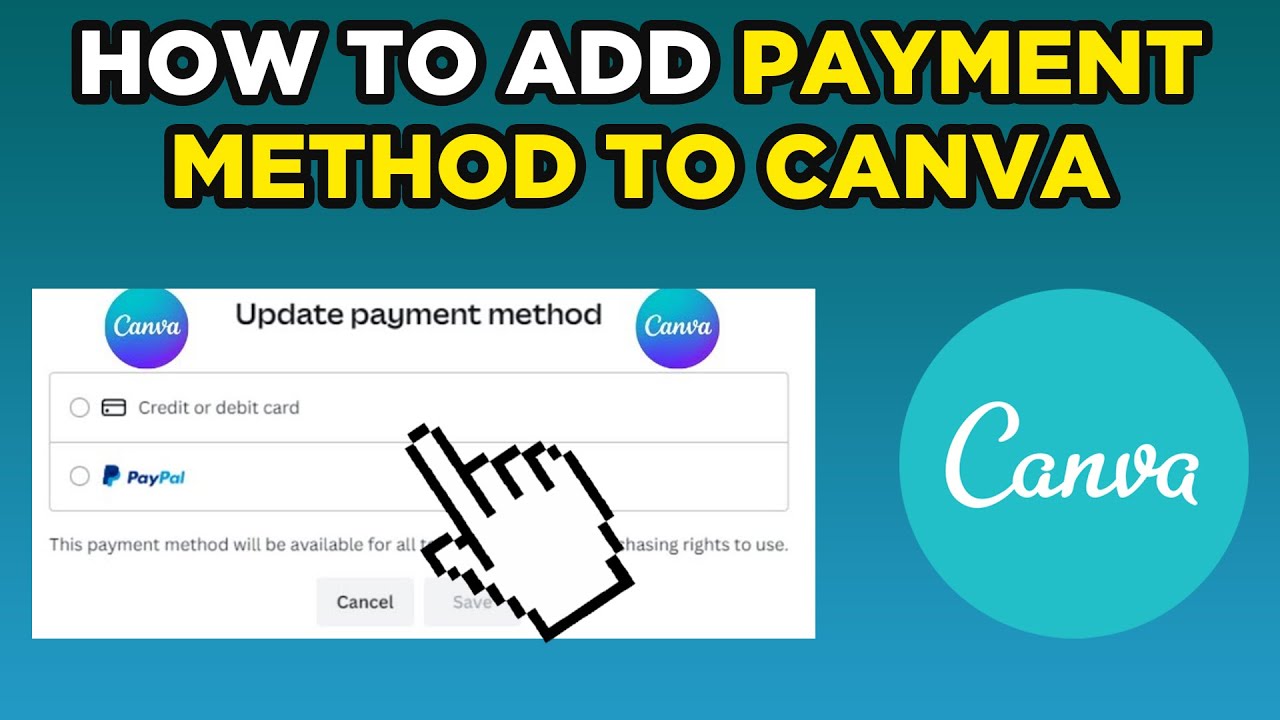
Canva Pro is obviously one of the favourite tools know with creatives, a powerful design platform that helps you create stunning visuals for social media, marketing materials, and more.
But you’re not sure how to pay for it, since your local credit card might not be working or allowed on the platform.
The solution: a virtual USA dollar card from Getly.
Getly is a global Subscription Payments Management for Digital workers & Businesses
Getly helps you create & manage virtual Dollar cards for every client and department. We make sure you don’t loose your personal funds when making payments online for your client or business.
You can create a new card in just a few minutes.
To create a Getly virtual dollar card, you’ll need to create a Getly account and verify your identity. Once your account is verified, You can create your new card.
Once you have your USA Getly virtual dollar card, you can add it to your Canva account as a payment method. Then, you can start using Canva Pro to create all the amazing designs you need for your clients.
How to Create a Virtual Dollar Card with Getly
Creating your Virtual Dollar Card with Getly is like lighting.
After creating your Getly account and verifying your account, follow these steps:
- Login to your Dashboard.
- Click on “Create a new virtual card.”
- If you haven’t completed your KYC (Know Your Customer) process, you’ll be prompted to do so.
- Personalise your card by giving it a name and choosing your preferred colour.

 Voila! You’ve successfully created your virtual Visa dollar card and funded it.
How to Pay for Canva Pro with Getly’s Virtual Dollar Card
Now that you have your Getly virtual card, you’re ready to subscribe to Canva Pro. Here’s a step-by-step guide:
Step 1: Log into Your Canva Account
Log in to your Canva account using your credentials.
Step 2: Access Canva Pro
On the Canva dashboard, you’ll find an option to upgrade to Canva Pro, typically displayed prominently. Click on this option to proceed.
Step 3: Choose Your Plan
Canva Pro offers various subscription plans, including monthly and annual options. Select the plan that aligns with your needs and budget. Keep in mind that annual plans often come with cost savings compared to monthly ones.
Step 4: Review Your Plan
Before proceeding, carefully review the details of your selected plan to ensure it includes all the features you require for your design projects.
Step 5: Add Billing Information

 This is where you enter your Getly virtual USD card details, including the card name, card number, and CVV code.
Step 6: Confirm and Pay
Double-check all the information you’ve entered for accuracy. Once you’re certain everything is correct, click the “Confirm and Pay” button.
Step 7: Payment Confirmation
Upon successful payment processing, you’ll receive a payment notification from Getly. Additionally, you may receive a confirmation email detailing your Canva Pro subscription.
Step 8: Start Using Canva Pro
With your payment confirmed, you now have access to all the premium features and benefits of Canva Pro. Begin exploring and utilizing them to enhance your design projects. If this solution works for you, consider sharing it within your creative community.
Make Payments on International Platforms with Getly’s Virtual Dollar Card
Getly’s virtual Dollar card has undergone rigorous testing on numerous international platforms, seamlessly facilitating transactions. These platforms include AliExpress, Udemy, Skillshare, Netflix, Shein, Amazon, Facebook, Google Ads, Canva Pro, Apple Music and many more.
Moreover, the Getly virtual dollar card is designed to simplify online and international payments for you. Visit www.getly.app to get started, and don’t hesitate to share this article with anyone who may find it helpful.
Enter the amount you want to fund your card with and tap “Next Create Card.” You can top up a minimum of $5 and a maximum of $1,000. Confirm your transaction pin.” Enter your transaction pin.
Now you can fund your Card
Go back to the dashboard where your card is Tap on fund “just below your card
 Now you need to fund your Card
But before you can fund your card you need to fund your wallet
To fund your wallet
Tap your menu bar on the left-hand side. Select wallet Tap Fund Credit the account number below with the amount you want to fund your card with.
Once payment has been confirmed, you'll have immediate access to Canva's premium features, such as background removal, access to an extensive library of resources, and much more.
Make the most of your subscription to create high-quality designs, safe in the knowledge that you've also saved money thanks to cashback.In conclusion, making a payment on Canva is simple and secure, and by using a card offering cashback, you can also make additional savings. Whether for business or personal projects, taking advantage of cashback makes the experience even more rewarding.
- From the payment prompt, select Credit or debit card.
- Enter your card details, and complete your purchase.
We accept the following cards:
- American Express
- Diners
- Discover
- JCB
- Mastercard
- Visa
- Korean local cards (South Korea)
Your card issuer may require an additional verification step before the payment is completed. You’ll be asked to complete an authentication challenge, such as entering a code sent to you via SMS or acknowledging the USA payment in your banking app.
If you have a saved USA credit card in a different currency than your current location (e.g., a Canadian card while in the US), Canva Print prices at checkout will automatically show in your card’s currency (Canadian Dollars in the example).
Posted on 2025/12/13 01:52 PM